Creating a Quote
In this tutorial you will learn how to create a basic quote in Teamleaf
Step-by-Step Guide
Finance
Quoting
Step 1
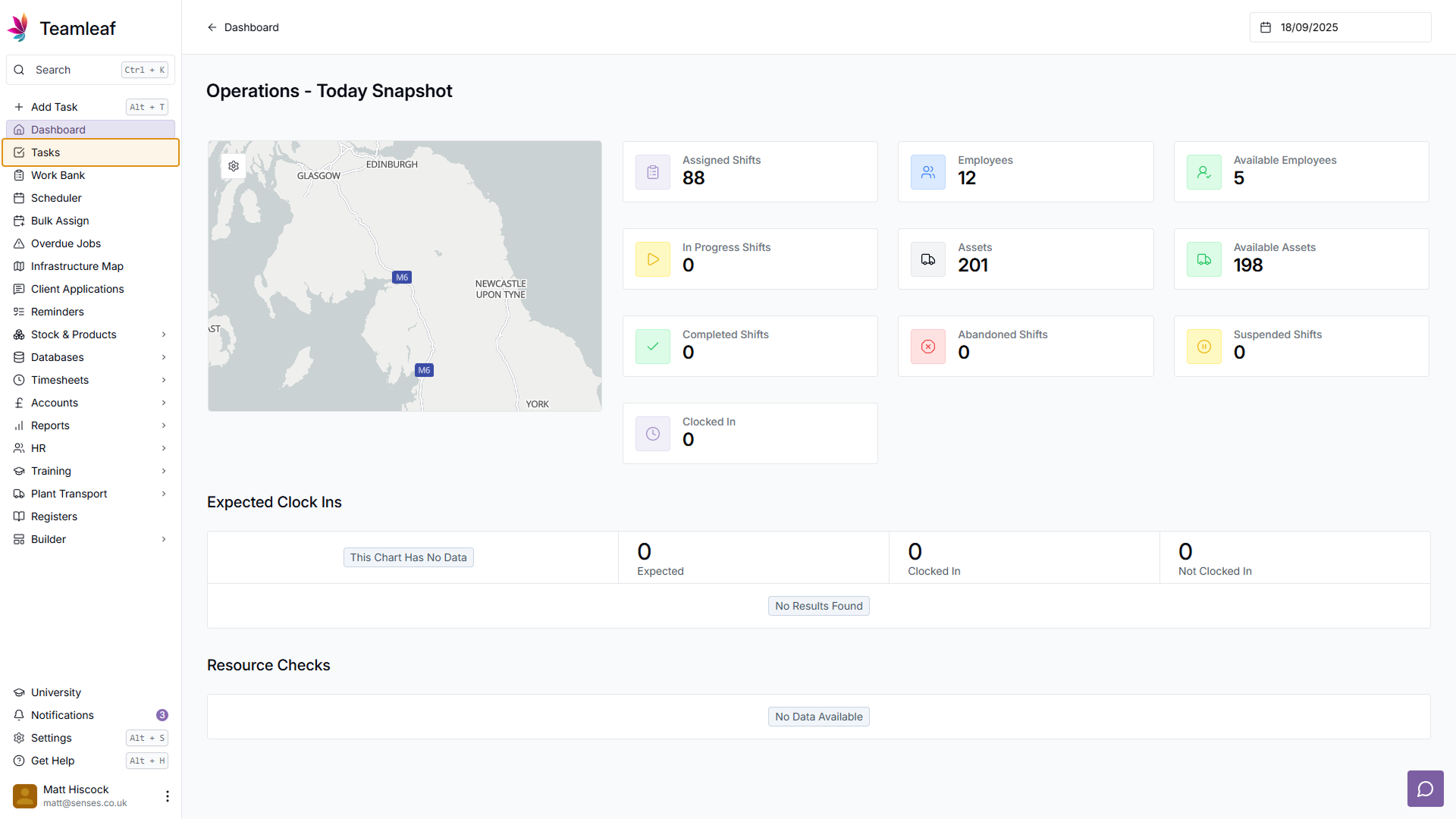
Go to 'Tasks'
On the left sidebar, go to 'Tasks' to see the task list
Step 2
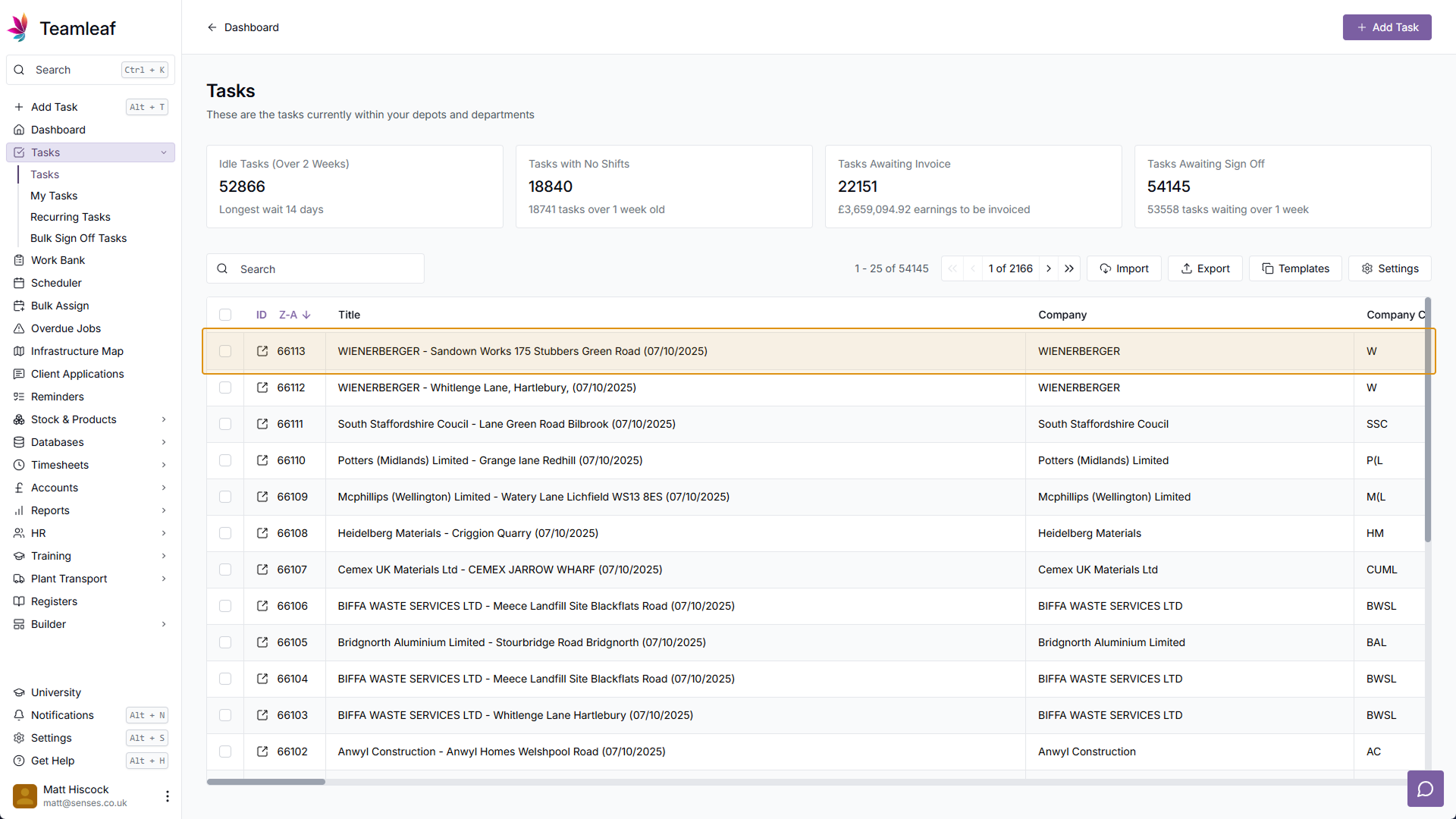
Select a Task
From the Task list, click the task you'd like to add a quote to
Step 3
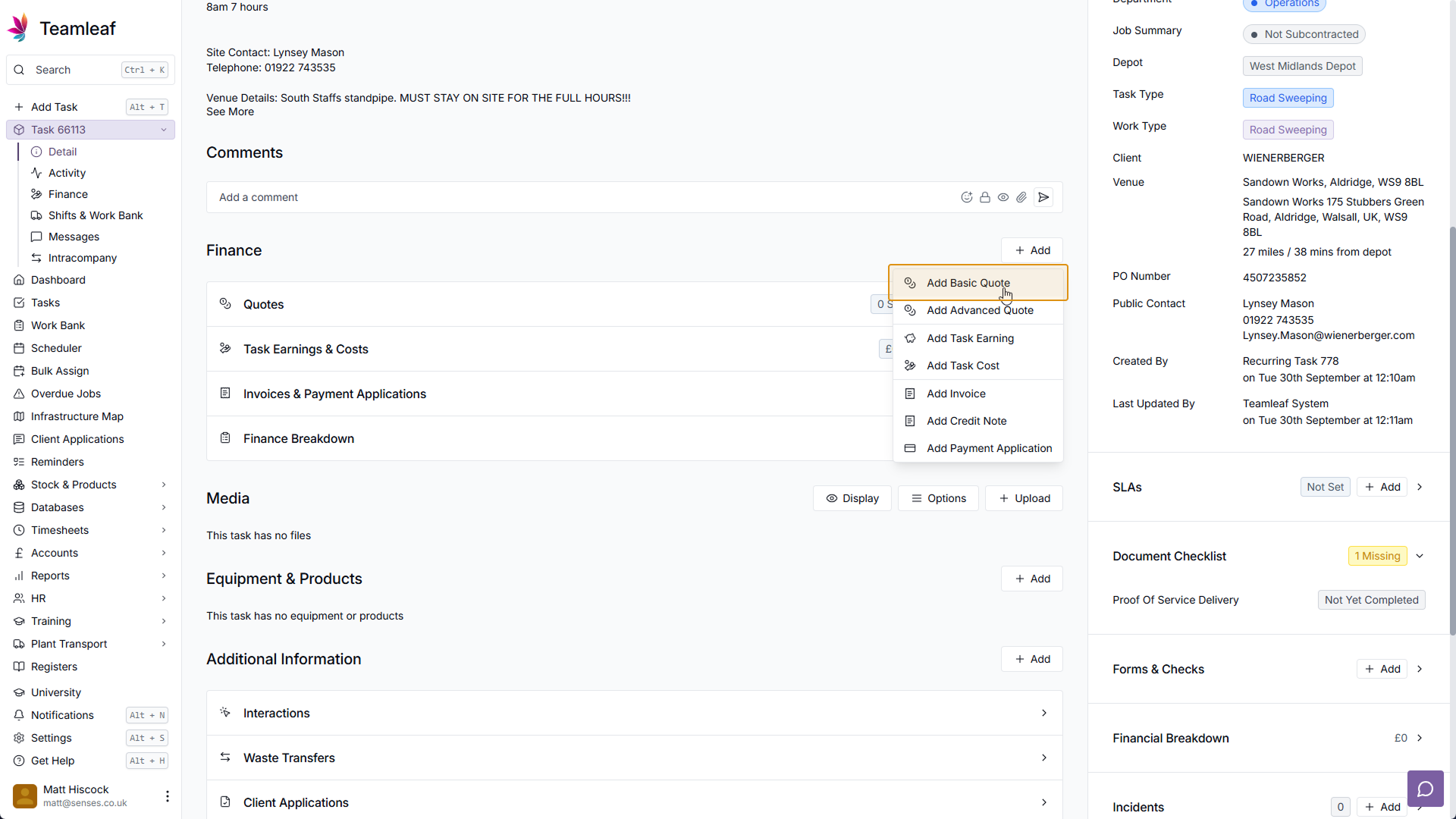
Click 'Add basic quote'
Scroll down to the Finance section and click 'Add', then click 'Add basic quote' in the menu that appears
Step 4
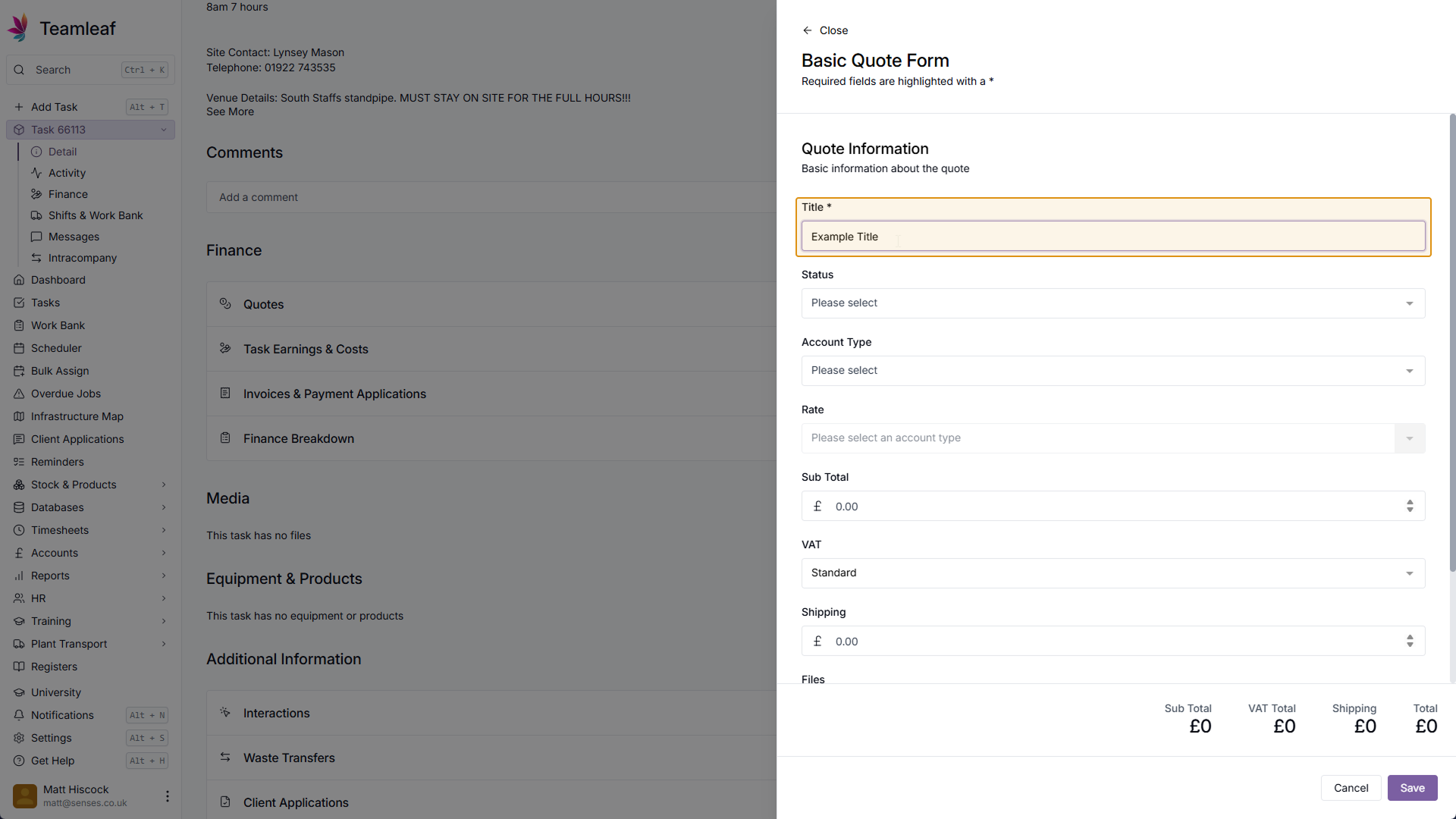
Add a quote title
Next, in the form that opens, give your quote a title
Step 5
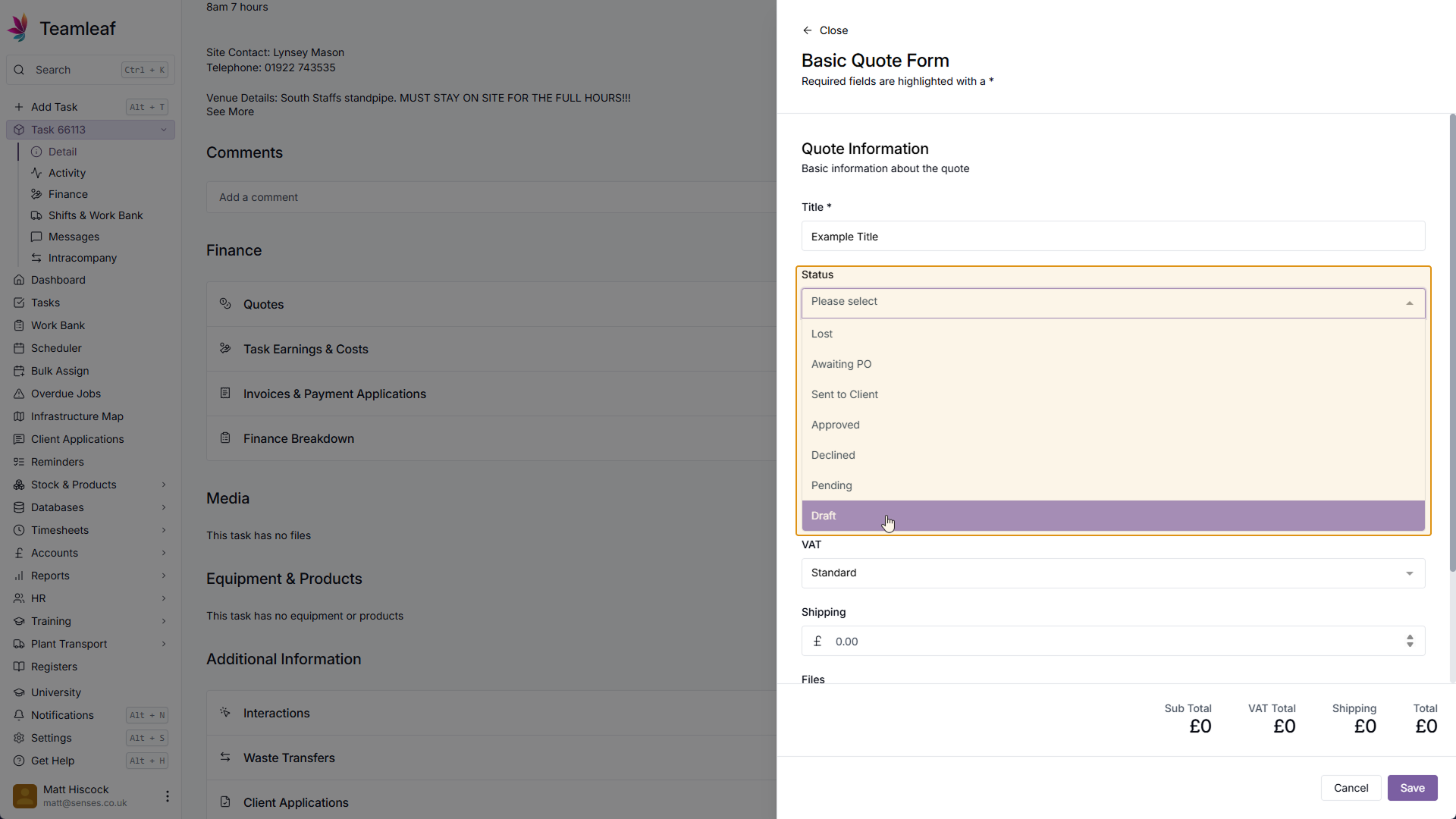
Add Status
Next, add a status to your quote, for this one I'm going to make it pending
Step 6
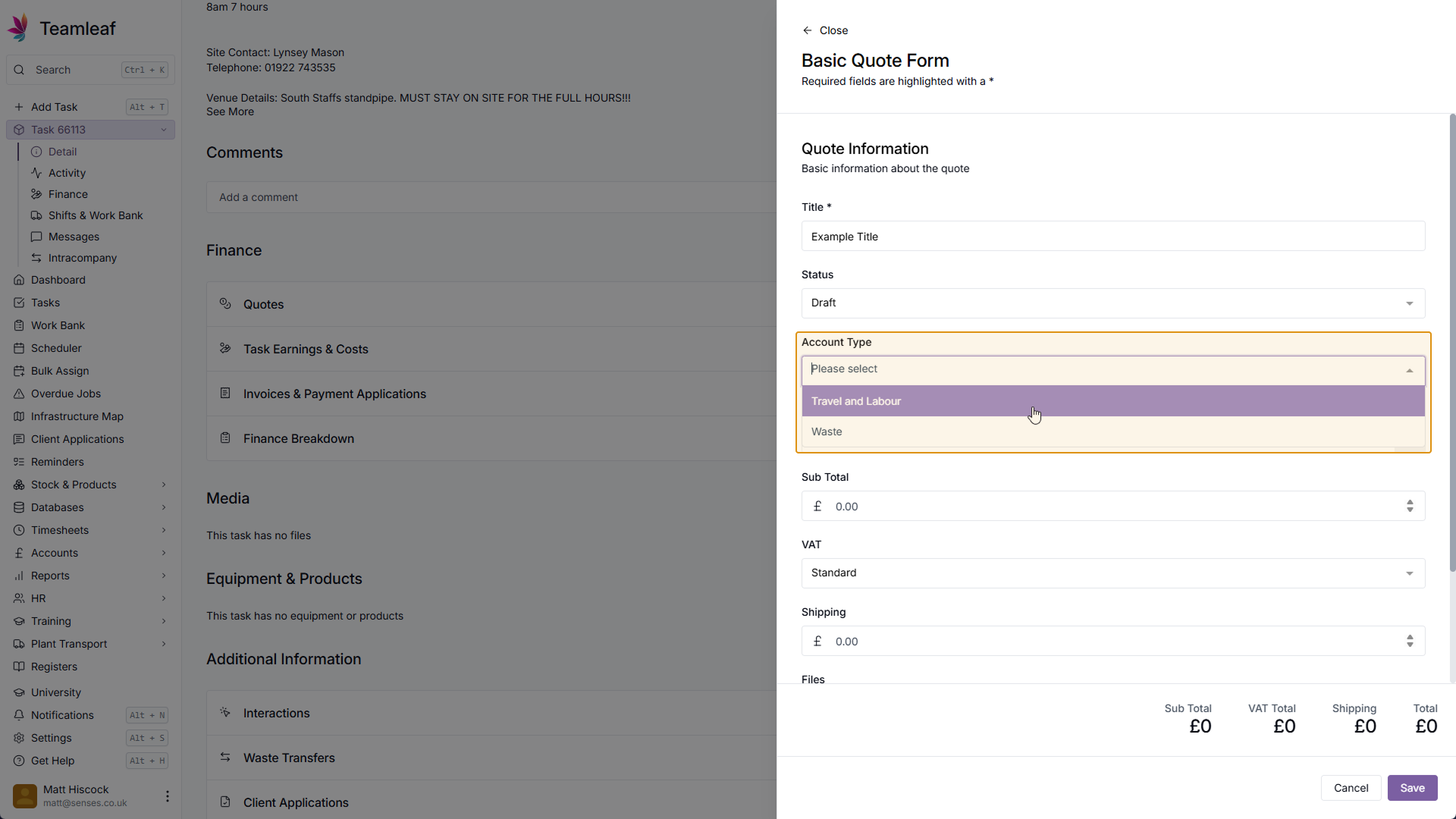
Select Account Type
Select which account type you want to use for this quote
Step 7
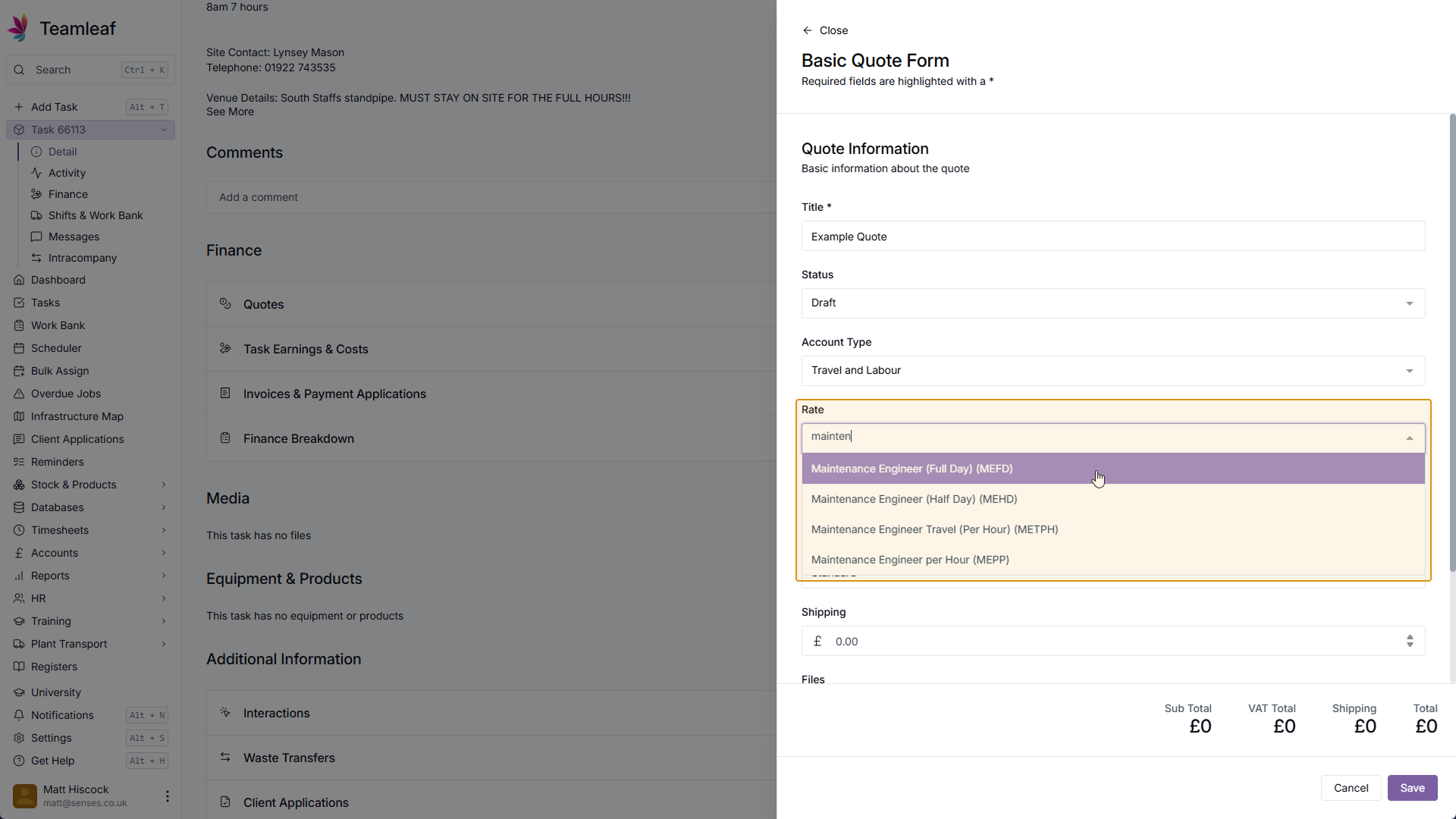
Select a rate
Click the dropdown menu beneath rate, and select which rate you'd like to use.
Step 8
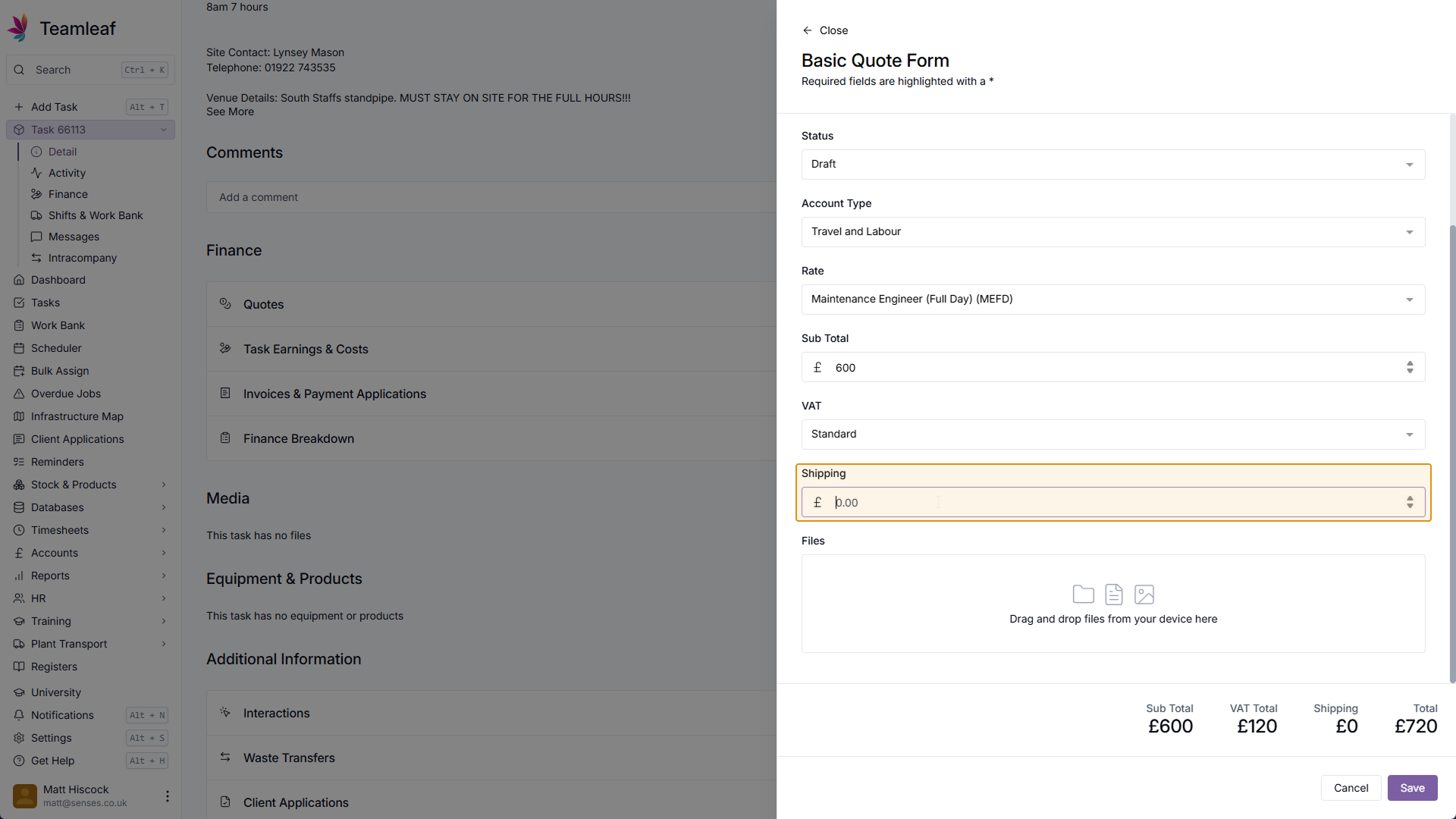
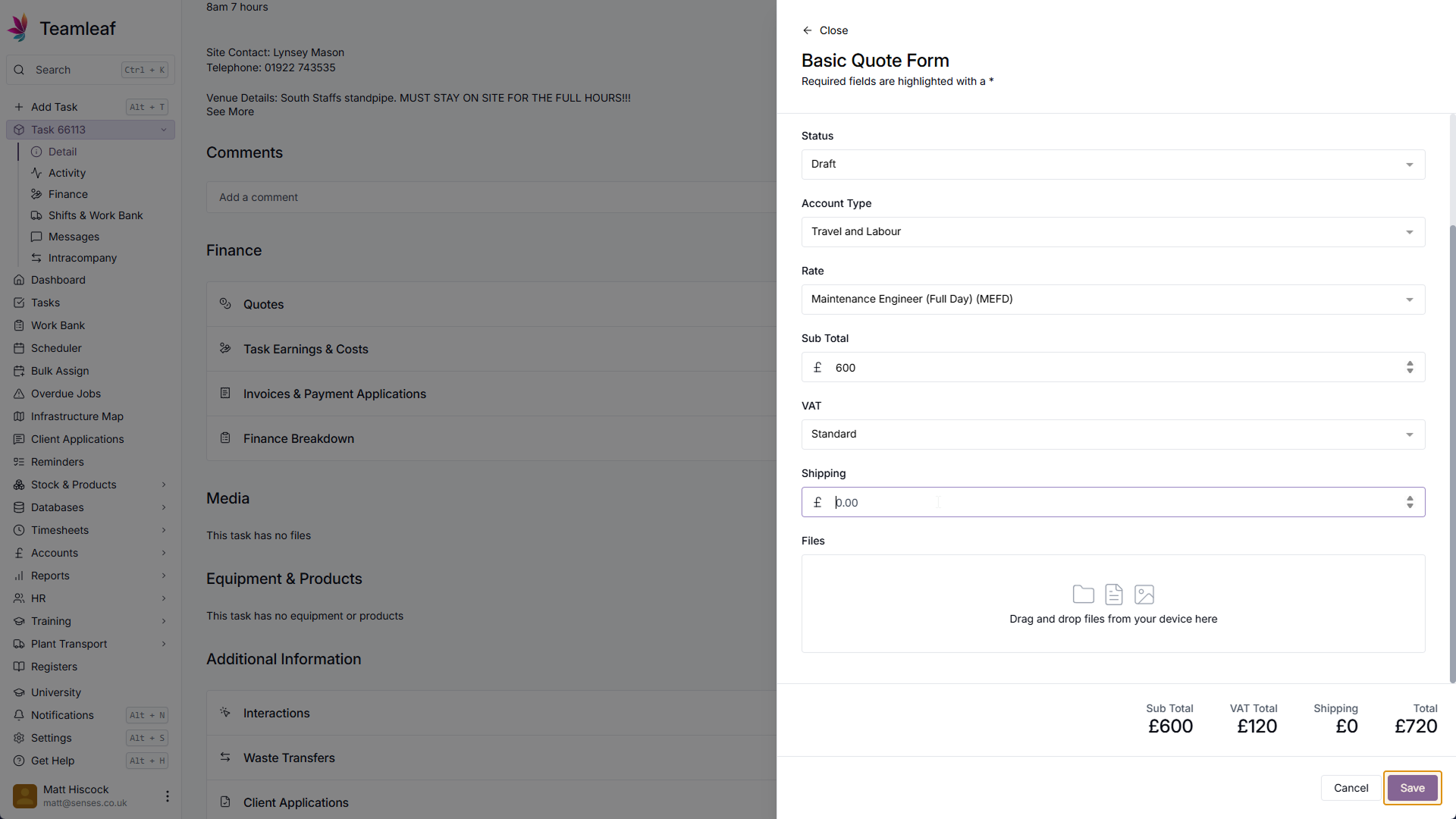
Add shipping
After adding a rate, the subtotal and VAT will be automatically selected, you can change these if you wish. Next, if applicable, add shipping
Step 9
Click 'Save'
Once you're happy with your quote, click the 'Save' button in the bottom right
Step 10
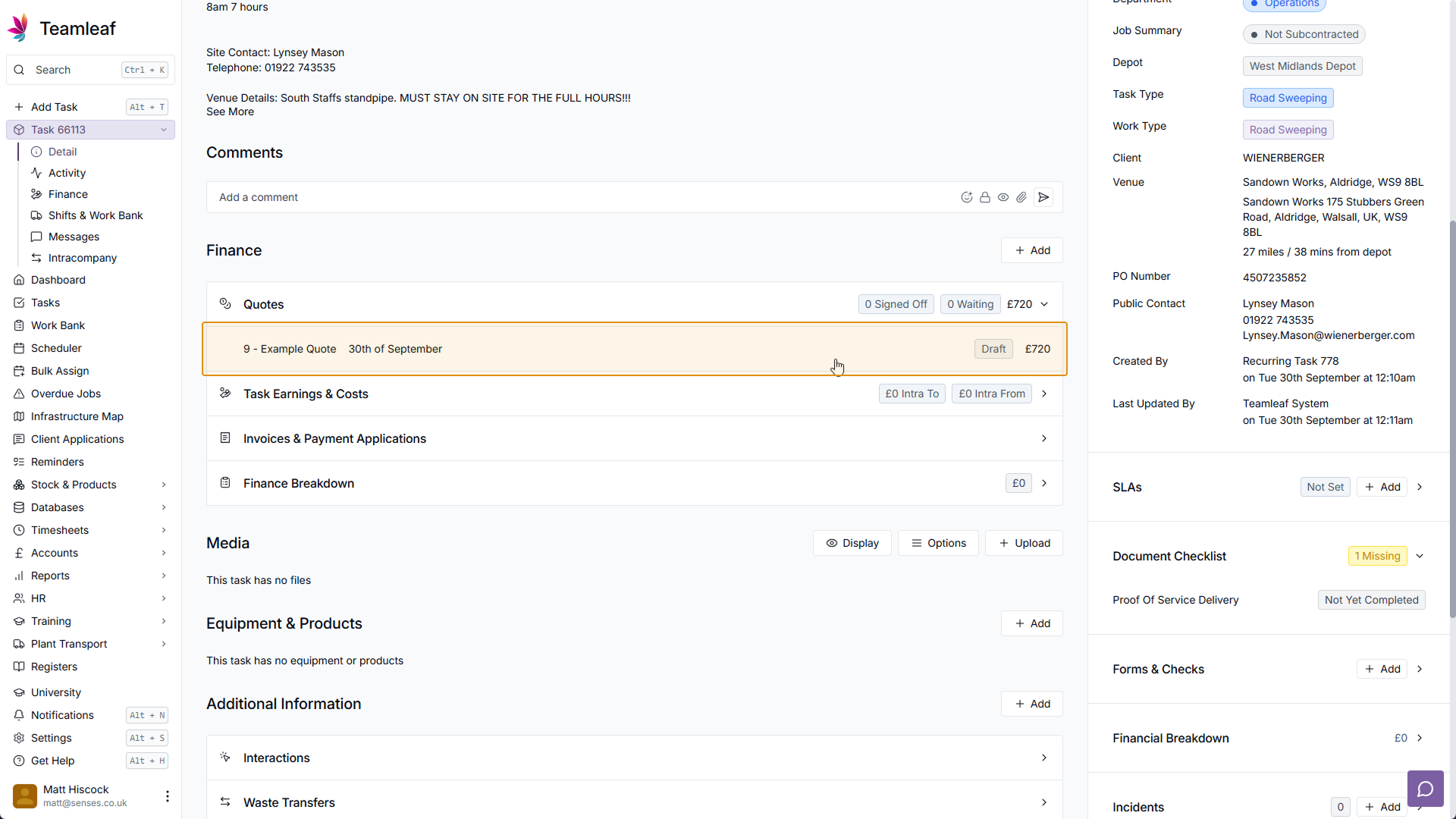
See your Quote
Under the finance section in the quotes section, you can now click your quote to view and edit quote details
Related Tutorials
Finance
Invoicing
Adding a Credit Note
Learn how to add a Credit Note to a Task in Teamleaf
View Tutorials
→
Finance
Setup
Adding and Updating Rates
In this tutorial you will learn how to add new rates, and update existing rates.
View Tutorials
→
Finance
Invoicing
Creating an Invoice
Learn how to create an invoice in Teamleaf, made simple using information you've already added to the Task
View Tutorials
→