Step-by-Step Guide
Human Resources
Step 1
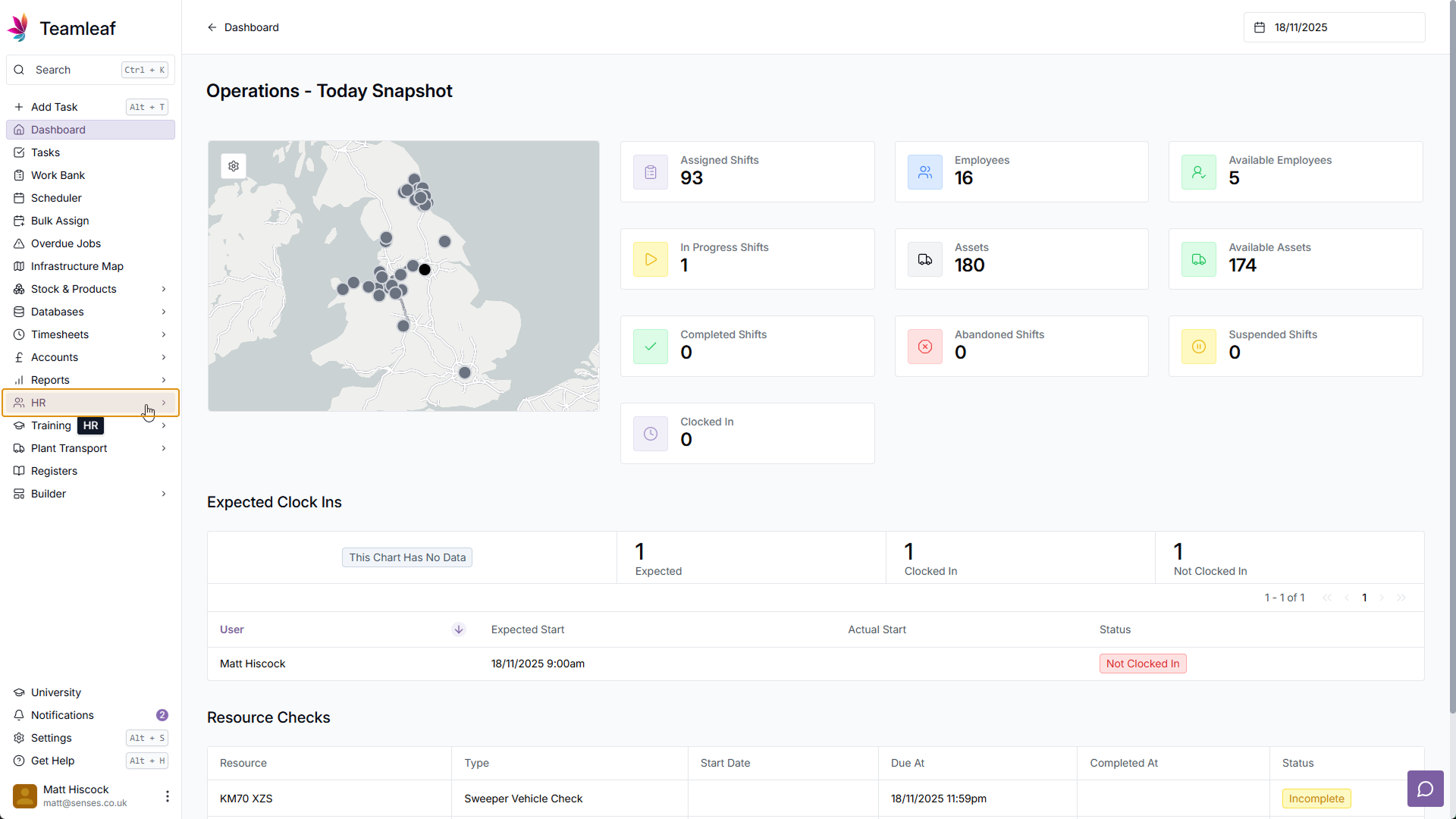
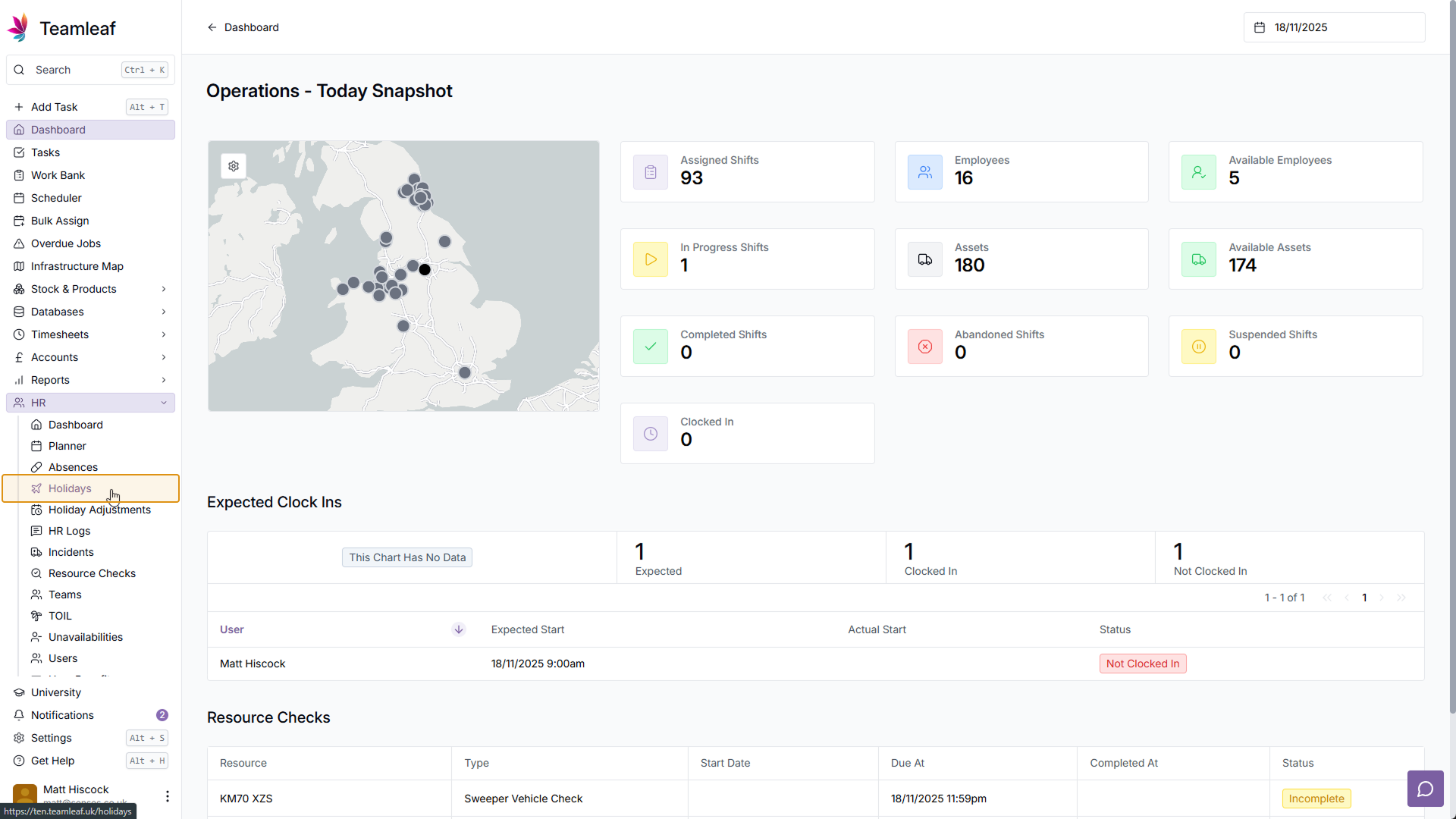
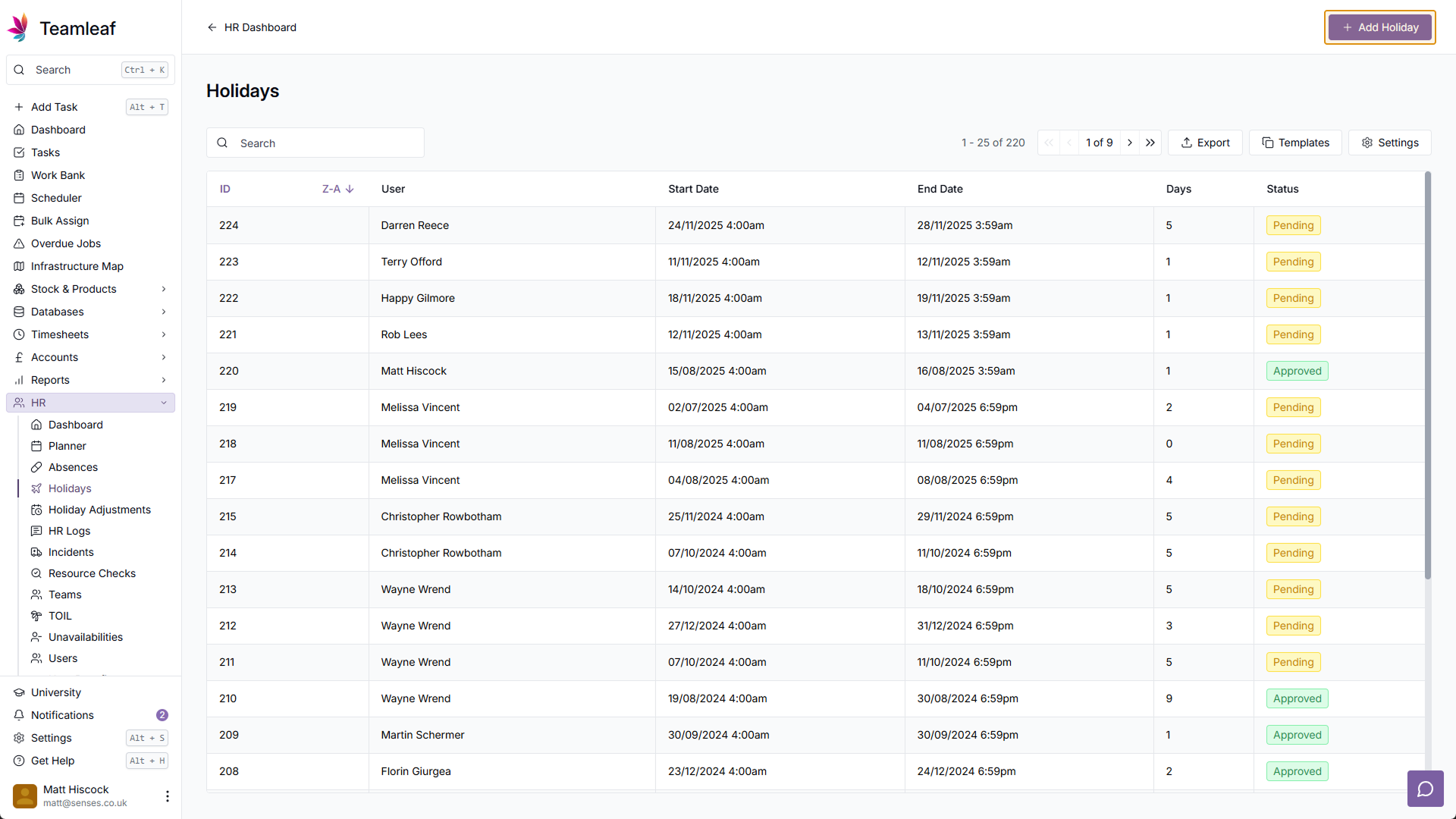
Go to Holiday page
To start, click 'HR' in the left sidebar, and click 'Holidays' in the dropdown menu
Step 2
Click 'Add Holiday'
In the top right of the Holiday page, click 'Add Holiday'
Step 3
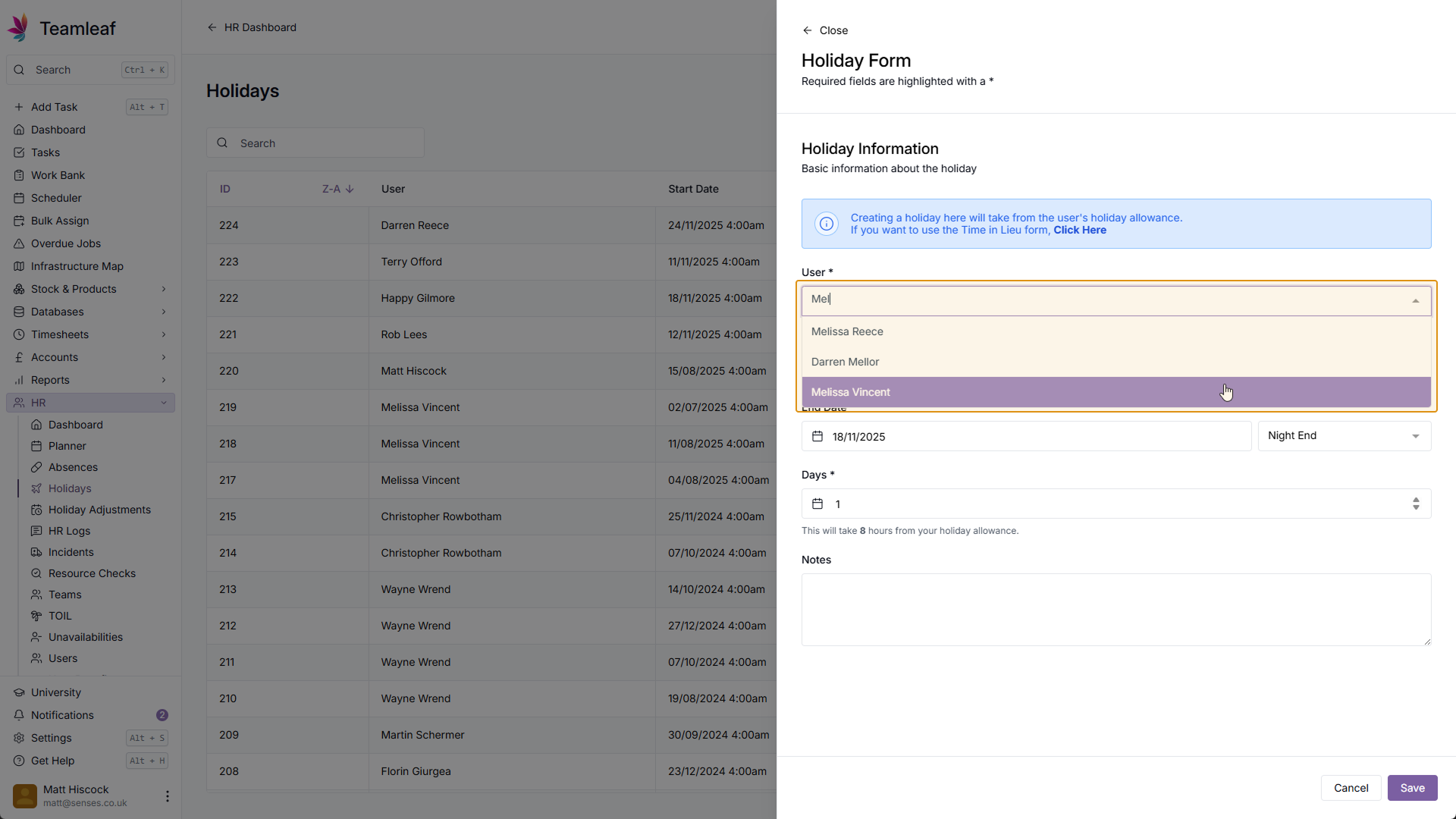
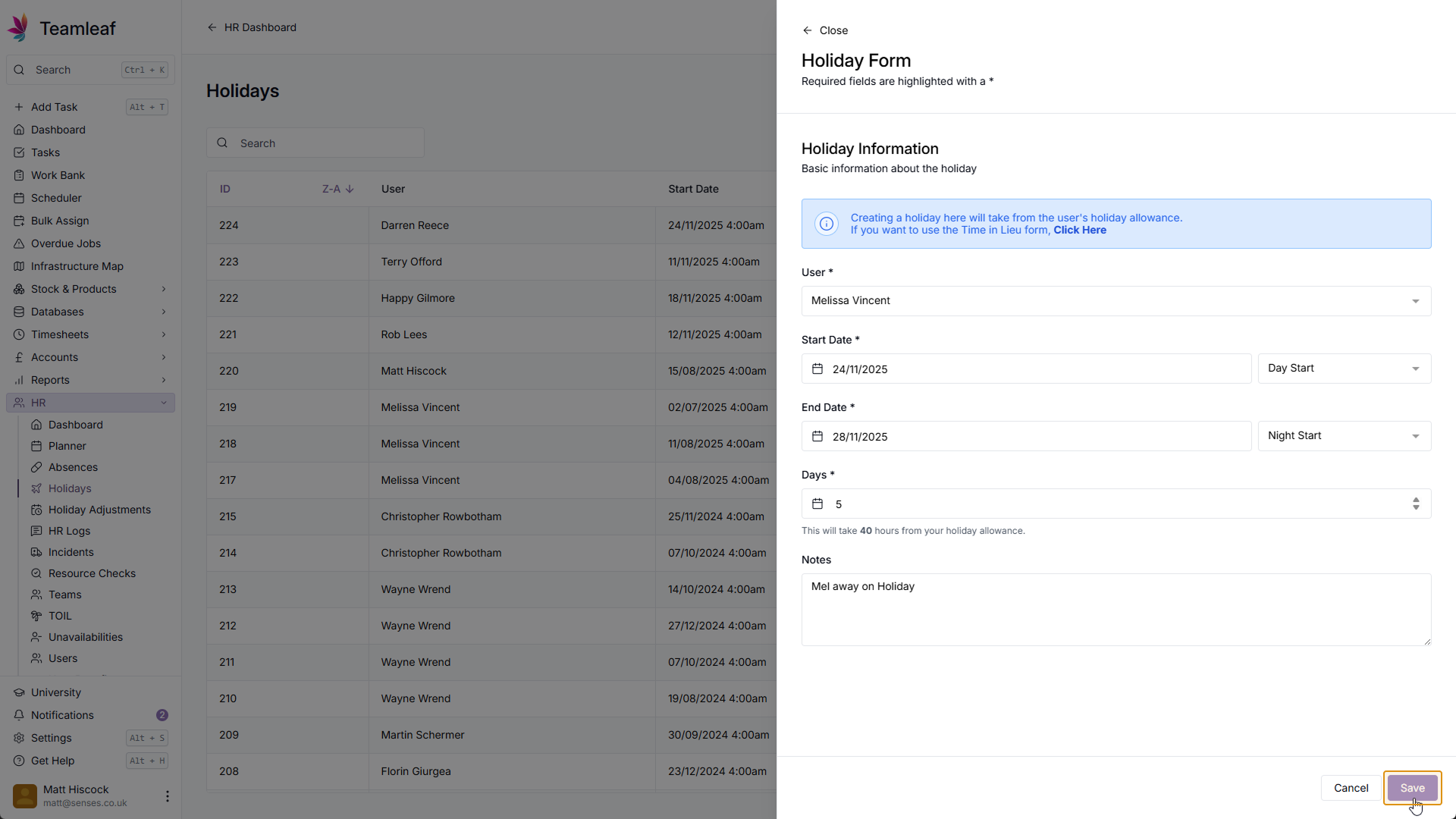
Select a User
In the form that opens, select which user you'd like to add this holiday for
Step 4
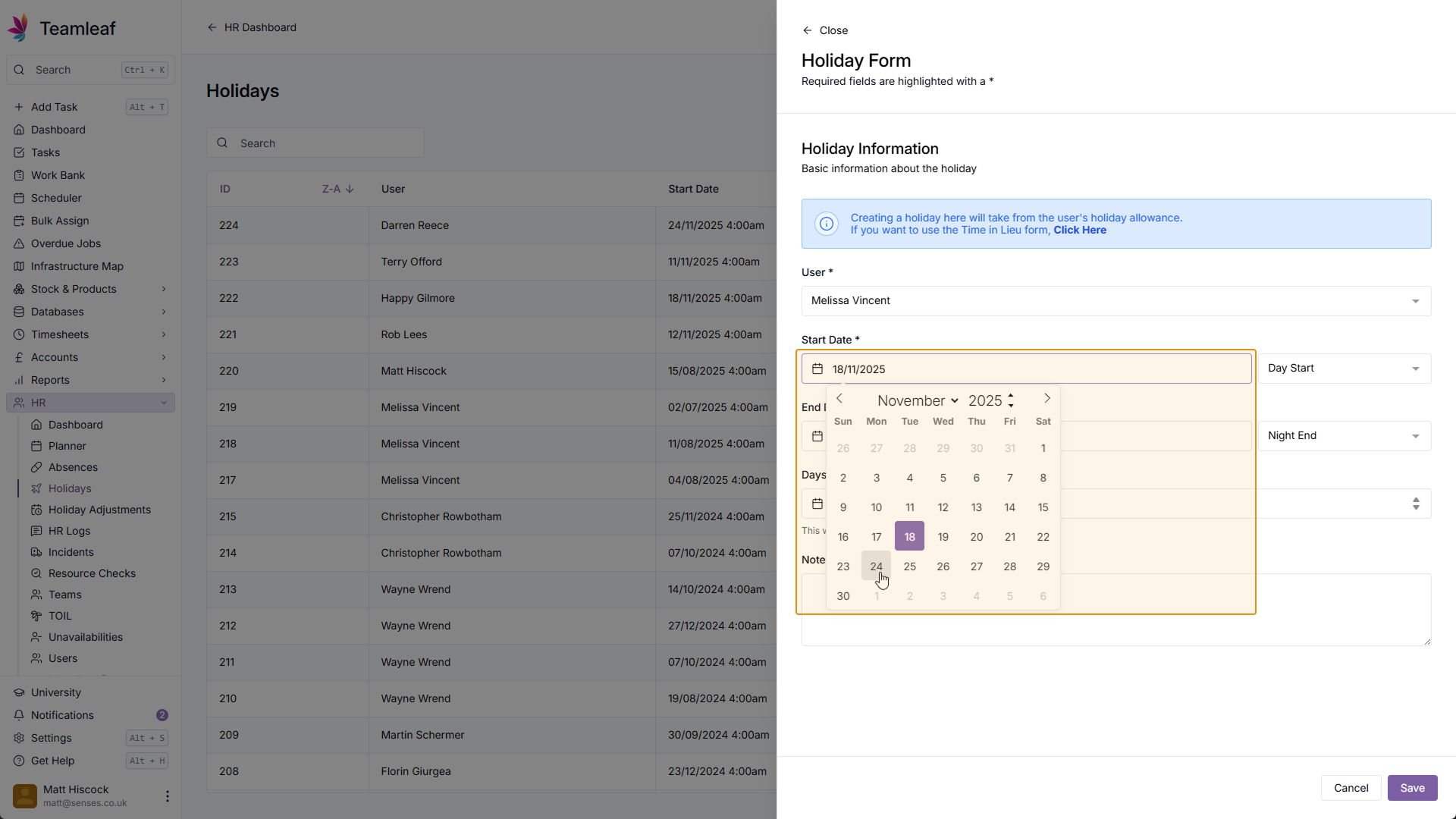
Set Start Date
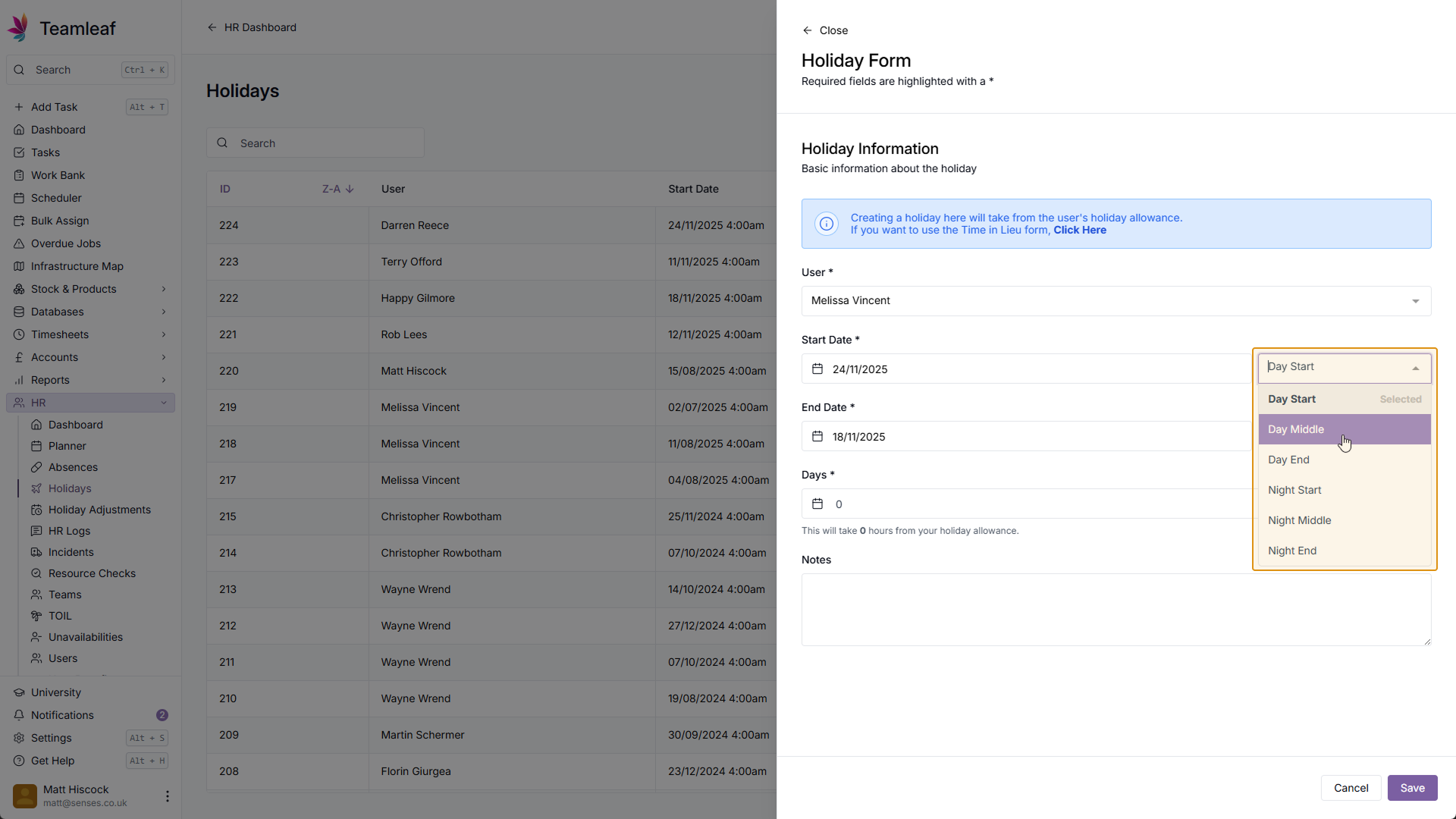
Next, using the date picker select the start date for the holiday. In the dropdown beside it, select the start time for the holiday
Step 5
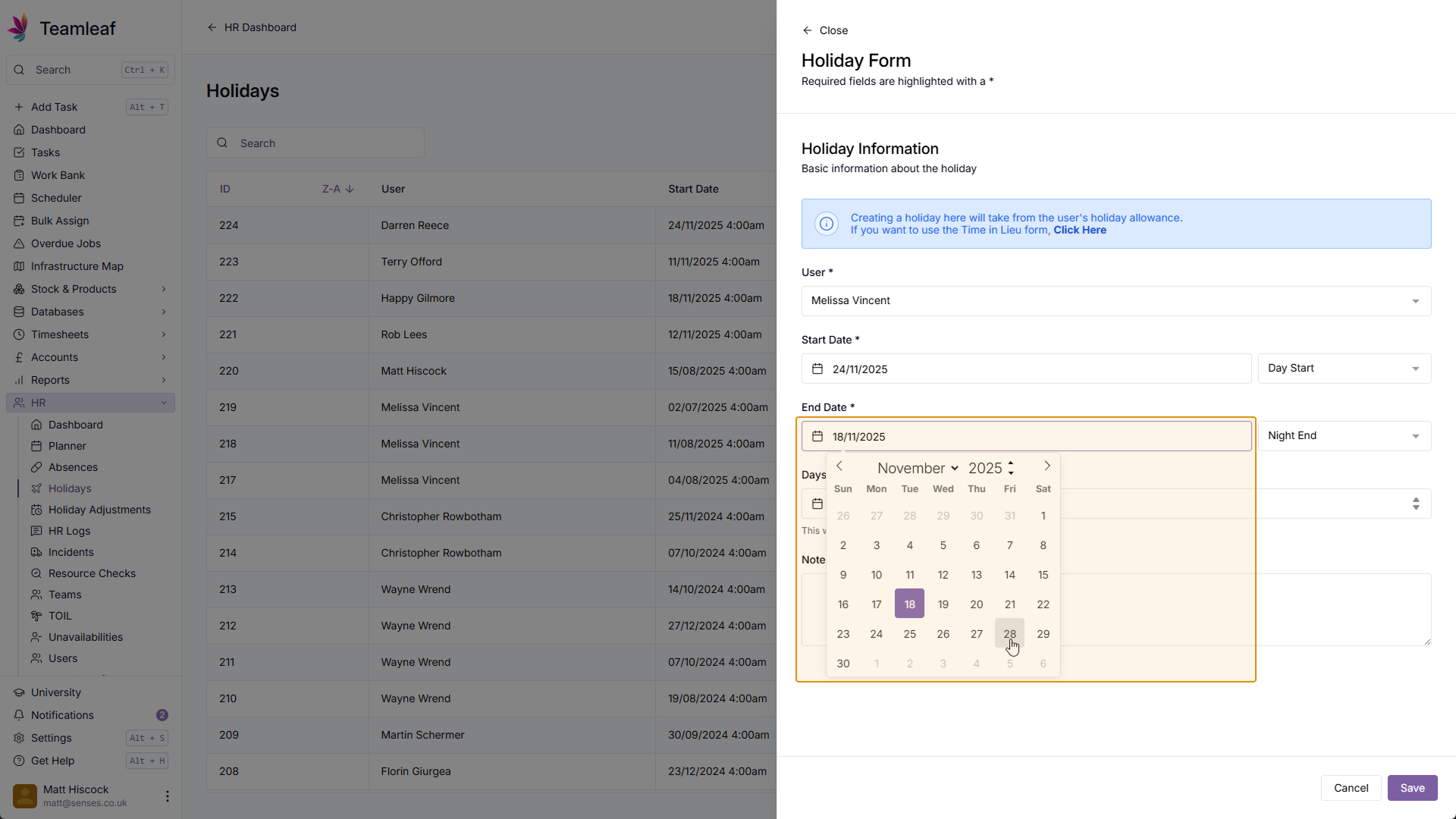
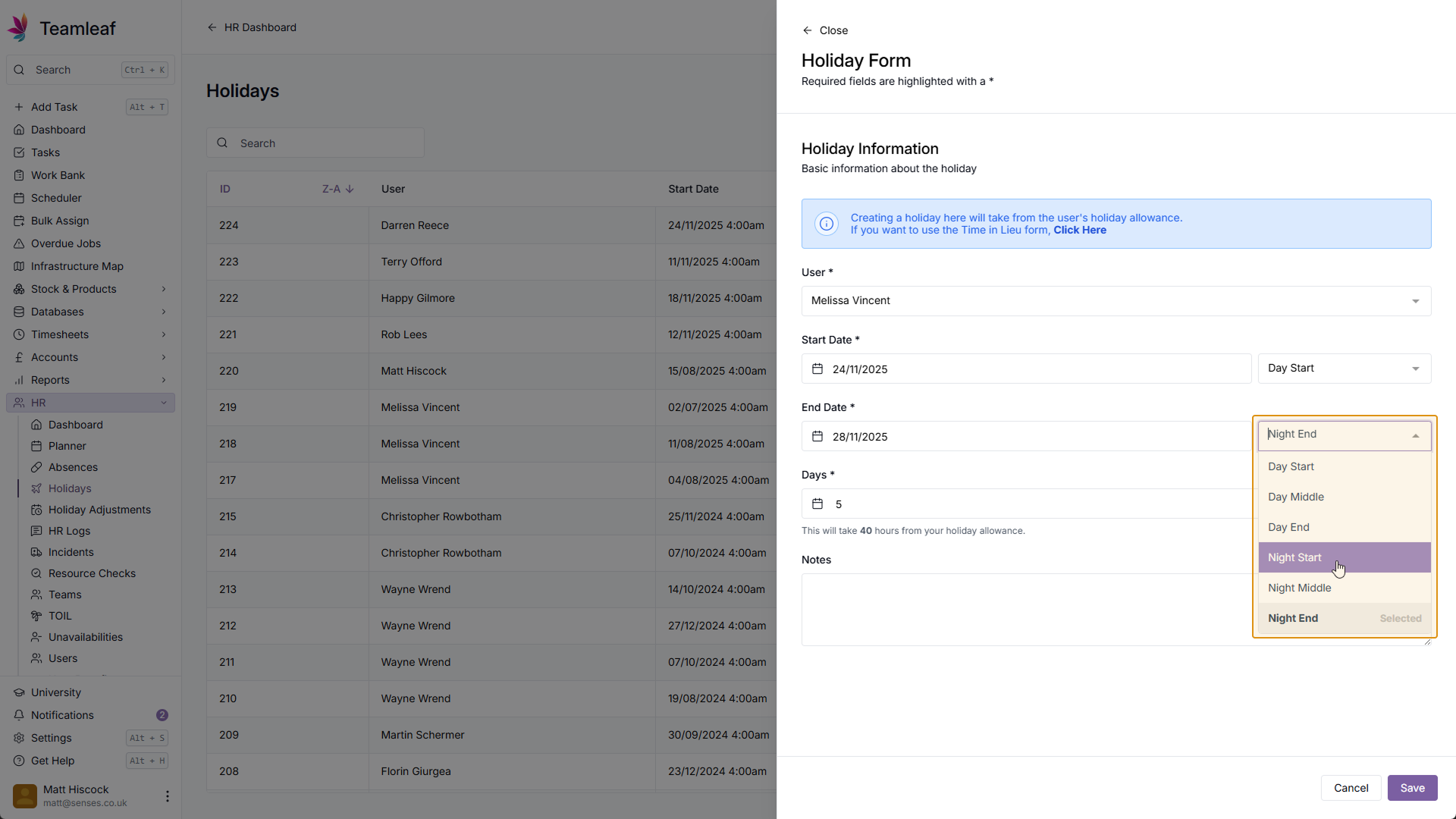
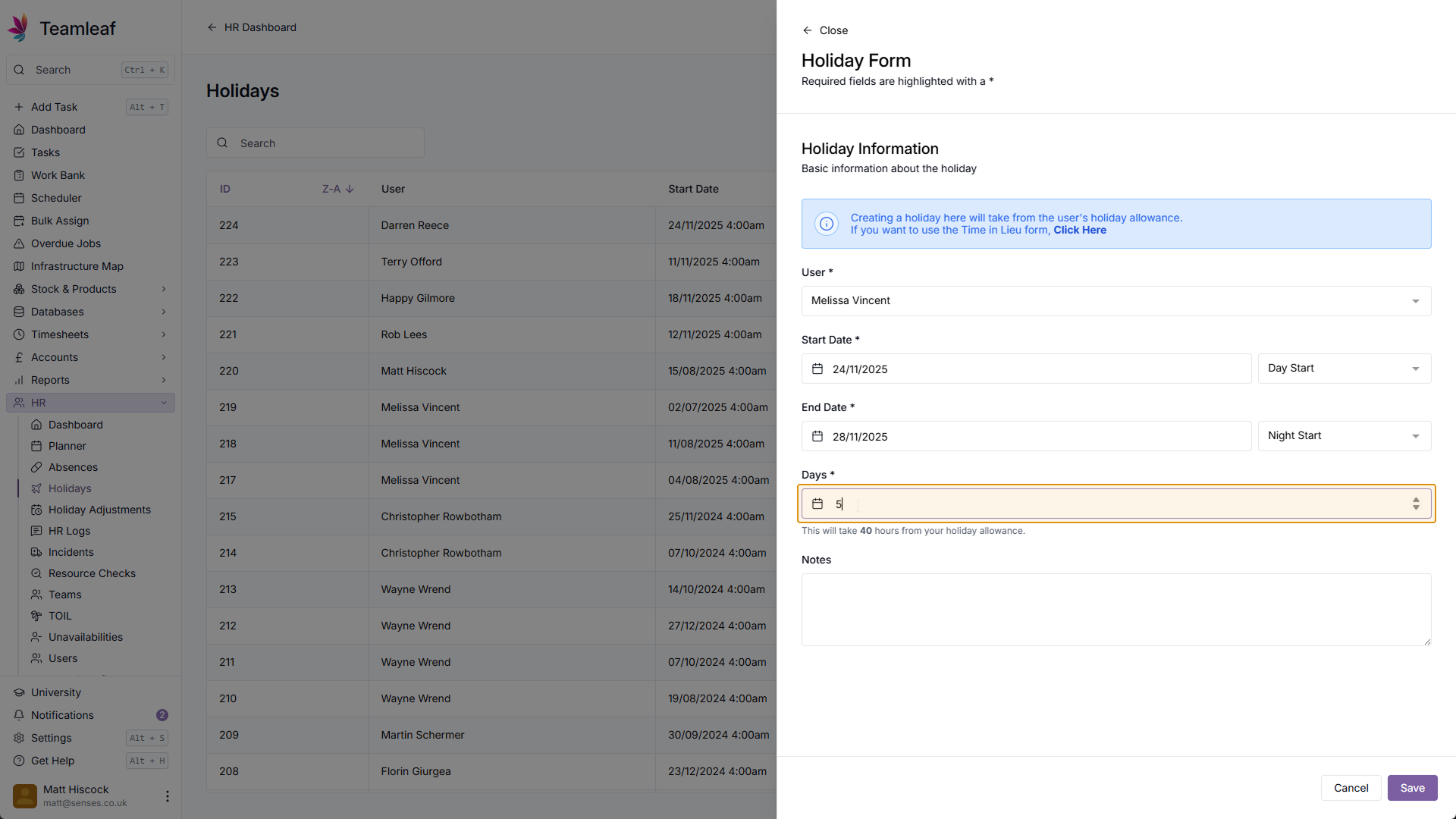
Set End Date
Next, select the End Date and Time. Once this has been set, the amount of days of holiday will be automatically set underneath, you can change this if you wish.
Step 6
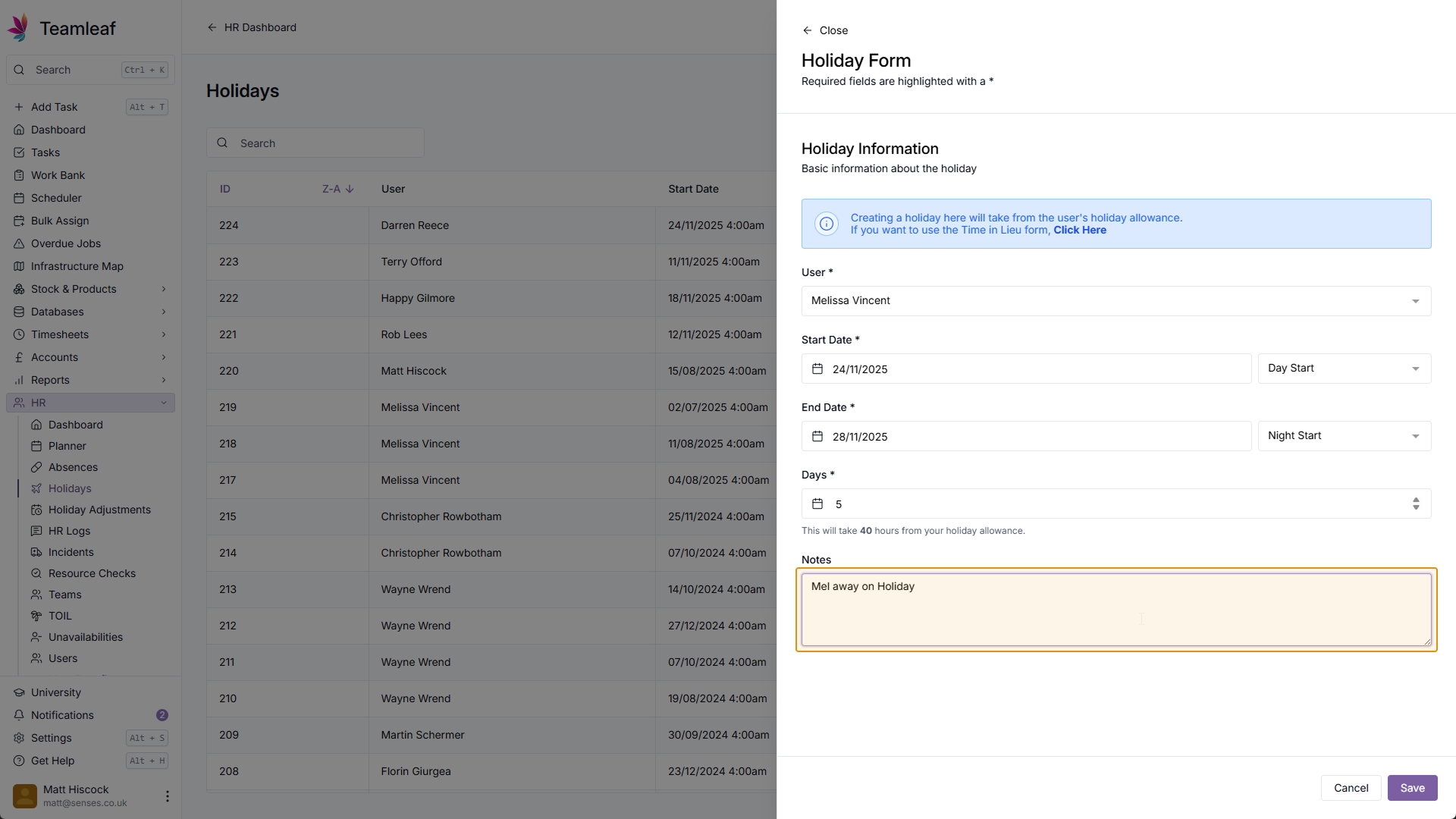
(Optional) Add Notes
If you wish, you can provide extra information about this holiday by using the notes section.
Step 7
Save Holiday
Once you're happy with the information you've added, click the 'Save' button in the bottom right.
Step 8
View Holiday
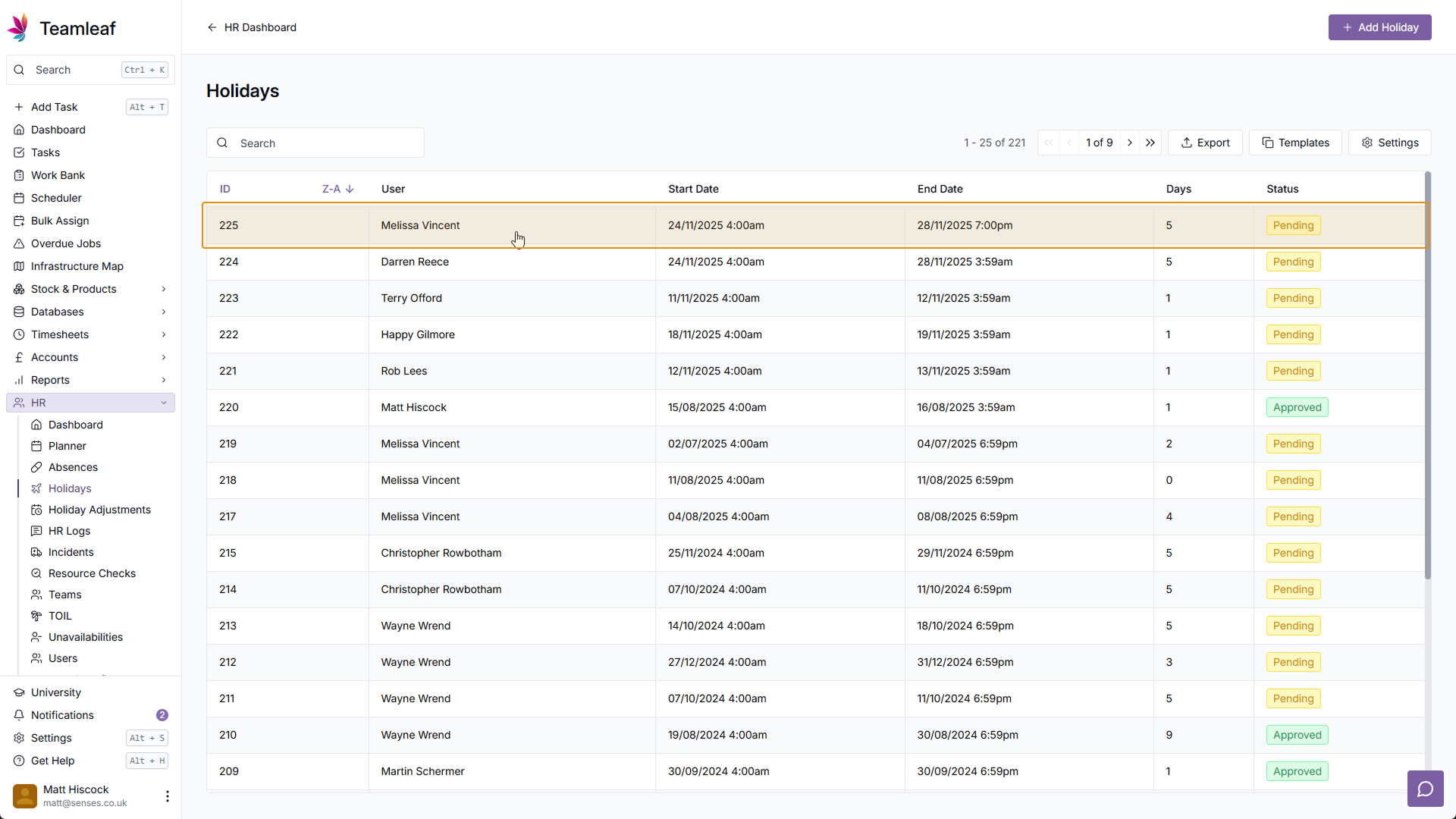
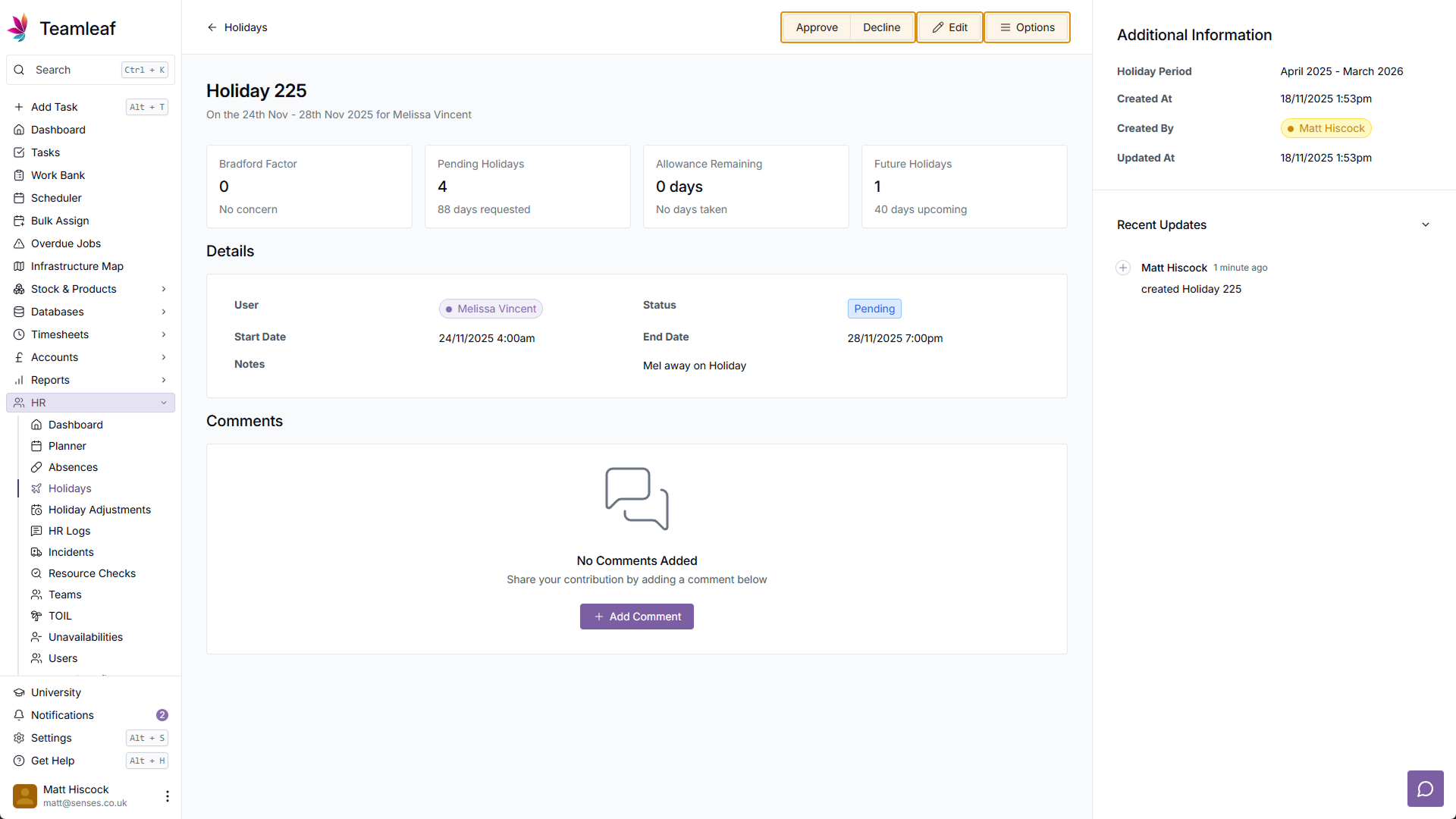
To view the holiday, click the holiday row (which will be added to the top of the Holiday list). You will then be taken to the holiday page, where you can make further changes if you wish.